
iblai-invite
Add user invitation dialogs to your Next.js app
How do I install this agent skill?
npx skills add https://github.com/iblai/vibe --skill iblai-inviteIs this agent skill safe to install?
- Gen Agent Trust Hubpass
The skill provides instructions for integrating user invitation dialogs into Next.js applications using the ibl.ai SDK. It follows standard developer workflows, including installing vendor-specific CLI tools and downloading configuration templates from the official repository.
- Socketpass
No alerts
- Snykpass
Risk: LOW · No issues
- ZeroLeakspass
Score: 93/100 · 2 sections analyzed
What does this agent skill do?
/iblai-invite
Add user invitation features -- a dialog to invite new users to a platform by email/username and a dialog showing pending invitations with status tracking.
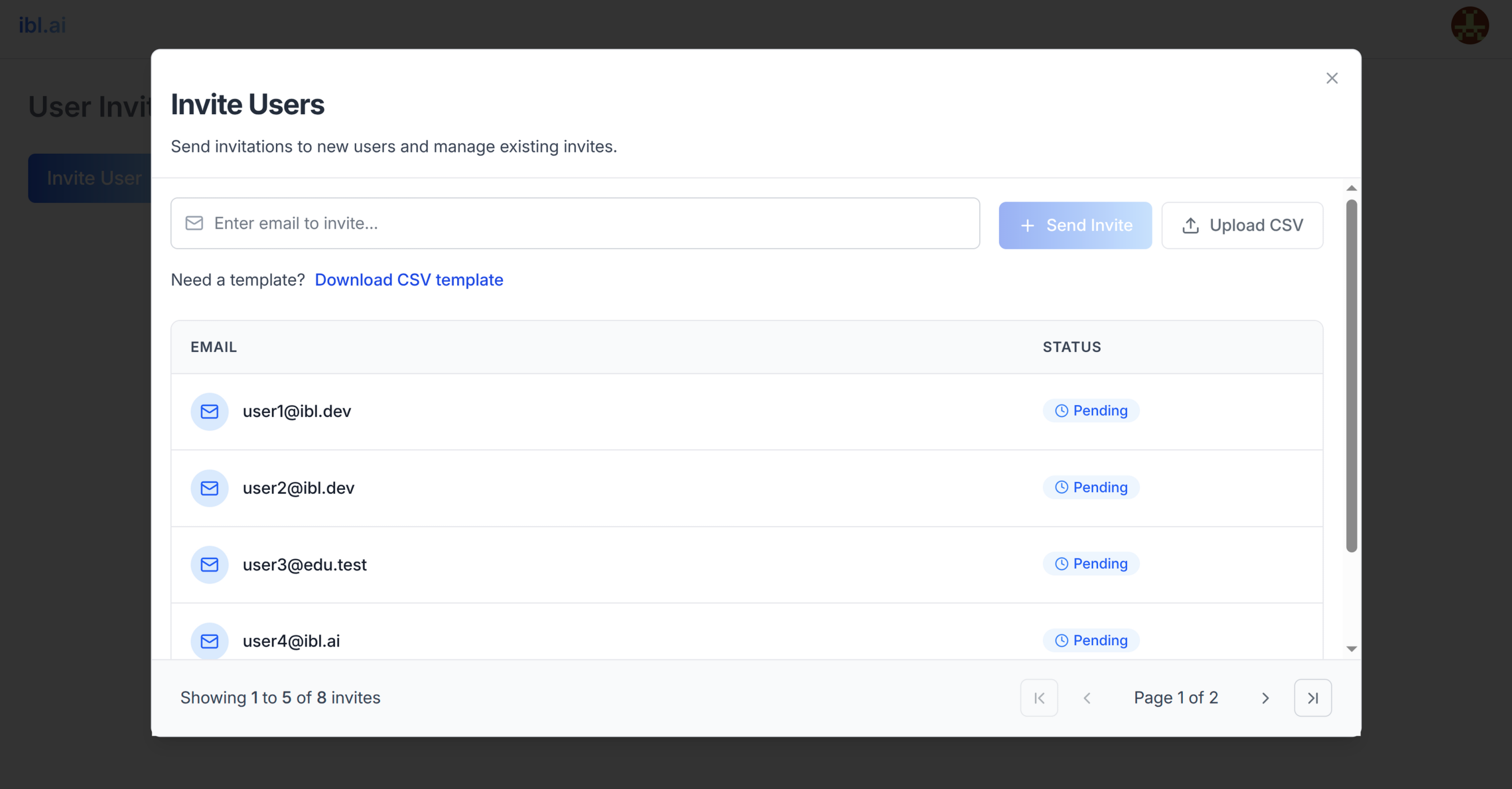
Do NOT add custom styles, colors, or CSS overrides to ibl.ai SDK components. They ship with their own styling. Keep the components as-is. Do NOT implement dark mode unless the user explicitly asks for it.
When building custom UI around SDK components, use the ibl.ai brand:
- Primary:
#0058cc, Gradient:linear-gradient(135deg, #00b0ef, #0058cc) - Button:
bg-gradient-to-r from-[#2563EB] to-[#93C5FD] text-white - Font: System sans-serif stack, Style: shadcn/ui new-york variant
- Follow the component hierarchy: use ibl.ai SDK components
(
@iblai/iblai-js) first, then shadcn/ui for everything else (npx shadcn@latest add <component>). Do NOT write custom components when an ibl.ai or shadcn equivalent exists. Both share the same Tailwind theme and render in ibl.ai brand colors automatically. - Follow BRAND.md for colors, typography, spacing, and component styles.
You MUST run /iblai-ops-test before telling the user the work is ready.
After all work is complete, start a dev server (pnpm dev) so the user
can see the result at http://localhost:3000.
iblai.env is NOT a .env.local replacement — it only holds the 3
shorthand variables (DOMAIN, PLATFORM, TOKEN). Next.js still reads
its runtime env vars from .env.local.
Use pnpm as the default package manager. Fall back to npm if pnpm
is not installed. The generated app should live in the current directory,
not in a subdirectory.
Common setup (brand, conventions, env files, verification): see docs/skill-setup.md.
Prerequisites
- Auth must be set up first (
/iblai-auth) - MCP server + skills configured (
@iblai/mcpin.mcp.json) - User must have admin privileges on the platform to send invitations
Step 1: Check Environment
Before proceeding, check for a iblai.env
in the project root. Look for PLATFORM, DOMAIN, and TOKEN variables.
If the file does not exist or is missing these variables, tell the user:
"You need an iblai.env with your platform configuration. Download the
template and fill in your values:
curl -o iblai.env https://raw.githubusercontent.com/iblai/vibe/refs/heads/main/iblai.env"
Step 2: Add the Components
There is no dedicated CLI generator for invite dialogs. Import the components directly from the SDK:
import { InviteUserDialog, InvitedUsersDialog } from "@iblai/iblai-js/web-containers";
Step 3: Use MCP Tools for Customization
get_component_info("InviteUserDialog")
get_component_info("InvitedUsersDialog")
<InviteUserDialog> Props
Dialog to invite a user to the current platform by email or username.
| Prop | Type | Description |
|---|---|---|
isOpen | boolean | Whether the dialog is visible |
onClose | () => void | Close callback |
org | string | Platform key |
<InvitedUsersDialog> Props
Dialog showing pending invitations with their status (accepted, pending, expired).
| Prop | Type | Description |
|---|---|---|
isOpen | boolean | Whether the dialog is visible |
onClose | () => void | Close callback |
org | string | Platform key |
Example Usage
Add invite buttons to an admin settings page or account page:
"use client";
import { useState } from "react";
import { InviteUserDialog, InvitedUsersDialog } from "@iblai/iblai-js/web-containers";
import { Button } from "@/components/ui/button";
import { resolveAppTenant } from "@/lib/iblai/tenant";

export function InviteSection() {
  const [showInvite, setShowInvite] = useState(false);
  const [showPending, setShowPending] = useState(false);
  const tenant = resolveAppTenant();

  return (
    <div className="flex gap-2">
      <Button onClick={() => setShowInvite(true)}>Invite User</Button>
      <Button variant="outline" onClick={() => setShowPending(true)}>
        View Pending
      </Button>
      <InviteUserDialog
        isOpen={showInvite}
        onClose={() => setShowInvite(false)}
        org={tenant}
      />
      <InvitedUsersDialog
        isOpen={showPending}
        onClose={() => setShowPending(false)}
        org={tenant}
      />
    </div>
  );
}
Step 4: Verify
Run /iblai-ops-test before telling the user the work is ready:
pnpm build-- must pass with zero errors- Start dev server and verify dialogs open correctly:
pnpm dev &
npx playwright screenshot http://localhost:3000 /tmp/invite.png
Important Notes
- Import:
@iblai/iblai-js/web-containers-- framework-agnostic - Admin only: Invitation features require admin privileges on the platform
- Redux store: Must include
mentorReducerandmentorMiddleware initializeDataLayer(): 5 args (v1.2+)@reduxjs/toolkit: Deduplicated via webpack aliases innext.config.ts- Brand guidelines: BRAND.md
How can the creator link this skill?
Add the canonical catalog link to the repository README so users can inspect current installs and available audits. The publishing guide covers the complete discovery path.
<a href="https://skillzs.dev/skills/iblai/vibe/iblai-invite">View iblai-invite on skillZs</a>